One MindstormAwesome Projects for your LEGO MINDSTORM NXT and EV3!2014-08-02T17:52:09Z/feed/atom/WordPressOneMindstorm<![CDATA[MindCub3r]]>/?p=7602013-12-26T05:35:28Z2013-12-26T05:34:54ZThe first Rubix Cube Solver for the Lego Mindstorm EV 3! David Gilday, the original designer of the MindCuber released building instructions and program for the MindCub3r. In our testing, the Ev 3 successfully solved the Rubix Cube several times. I had to use a sudo command using terminal on my Mac in order to download the files […]]]>
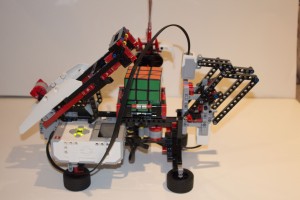
The first Rubix Cube Solver for the Lego Mindstorm EV 3! David Gilday, the original designer of the MindCuber released building instructions and program for the MindCub3r. In our testing, the Ev 3 successfully solved the Rubix Cube several times. I had to use a sudo command using terminal on my Mac in order to download the files onto the EV 3, hopefully David will have an easier fix soon, but the robot still performed well.
]]>3OneMindstorm<![CDATA[Mindstorm EV 3 Unboxing & Review]]>/?p=7452013-09-02T06:35:47Z2013-09-01T11:35:11ZLego released their radical new Mindstorm EV 3 today, which was announced earlier this year at the Consumer Electronic Show in Nevada. The EV 3 is Lego’s third generation of Mindstorms, following the NXT 2.0 which was released in 2009. The $349 package includes a touch sensor, color sensor, infrared sensor and 600+ Lego Technic […]]]>
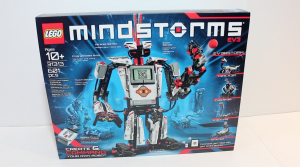
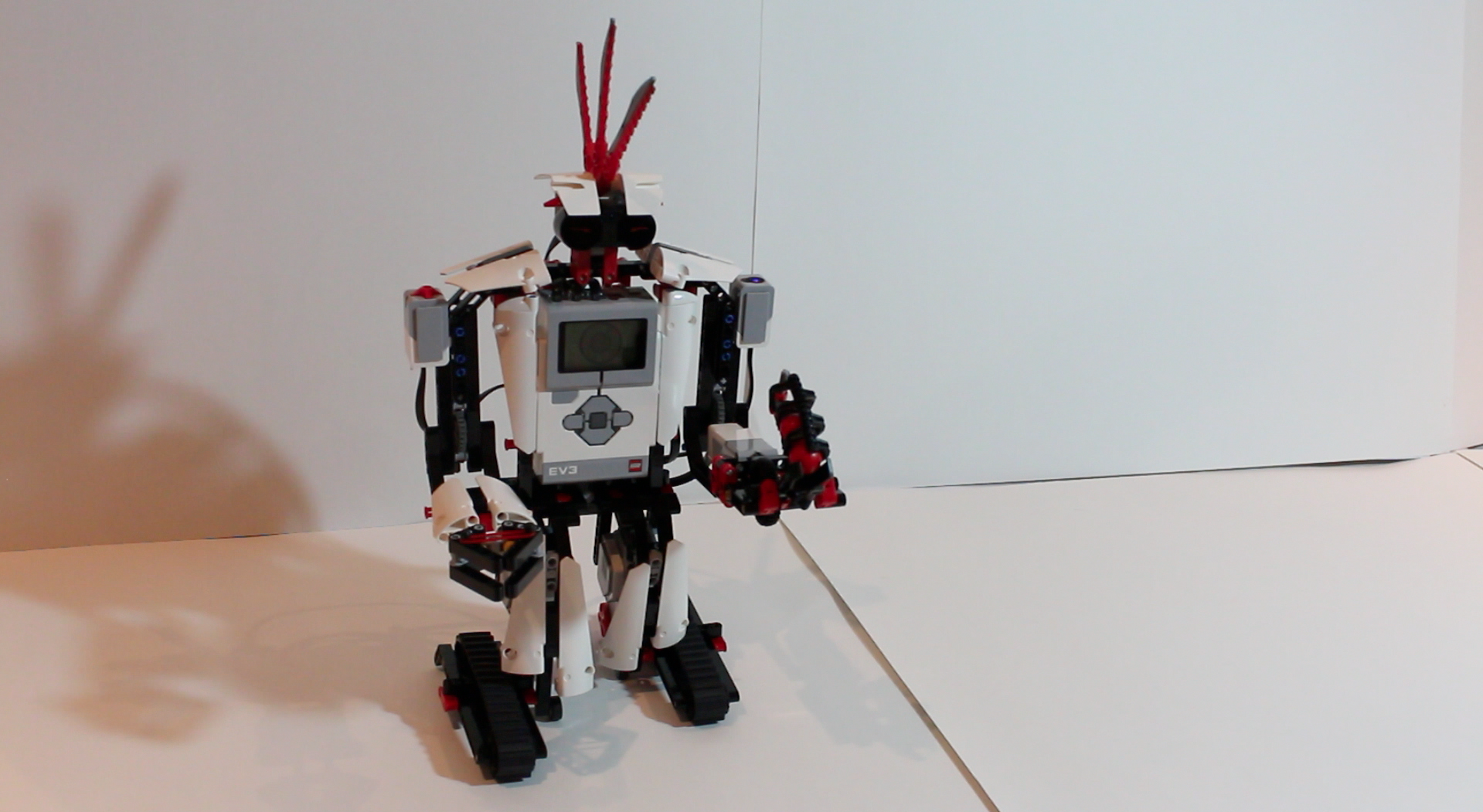
Lego released their radical new Mindstorm EV 3 today, which was announced earlier this year at the Consumer Electronic Show in Nevada. The EV 3 is Lego’s third generation of Mindstorms, following the NXT 2.0 which was released in 2009.
The $349 package includes a touch sensor, color sensor, infrared sensor and 600+ Lego Technic elements. These sensors are redesigned from the ground up to provide additional features, allowing the Mindstorm to complete a larger variety of tasks. The most improved aspect of the Mindstorm EV 3 is the new EV 3 Intelligent Brick (the central Mindstorm operating component), which is based on Linux and also provides WiFi connection.
The EV 3 is fully compatible with iOS and Android devices out of the box. Lego released two new apps. “3D Builder” provides free-to-download building instructions viewed in a 3D environment. “Robot Commander” connects via Bluetooth to the EV3 Intelligent Brick and provides the ability to interact with EV3 robots.
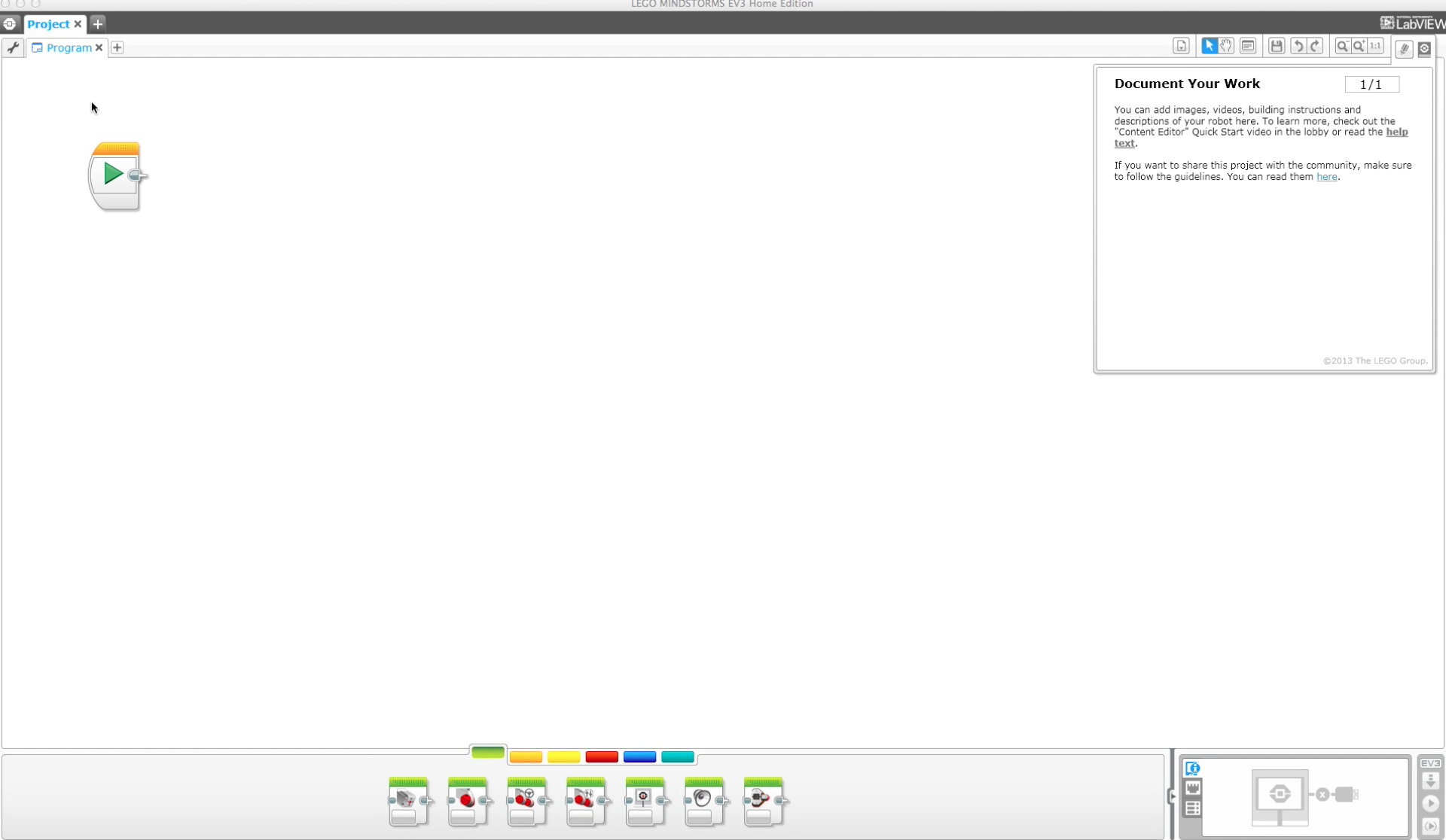
The new visual programming software available for MAC and PC provides a simple interface for complex tasks. However, the EV 3 Brick can also be programmed without the need of a computer.
Ranging from a simple vehicle to a complex Rubix Cube Solver, the Lego Mindstorm EV 3 provides the ability to create hundreds of robots.
OneMindstorm will continue to provide building instructions and programs for the Mindstorm EV 3.
Available at Amazon:
]]>0OneMindstorm<![CDATA[Mindstorm Rig]]>/?p=7332014-08-02T17:52:09Z2013-08-16T22:38:37ZOriginally designed by Leon Overweel, OneMindstorm modified the Mindstorm Rig to provide iPhone compatibility. The rig uses two motors, therefore the rig can tilt and pan in different angles. The rig can be controlled using another Mindstorm. The remote control is quite simple and can easily control the rig without issues. This rig performs […]]]>
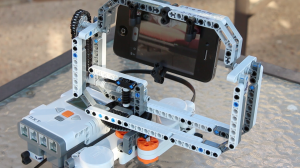
Originally designed by Leon Overweel, OneMindstorm modified the Mindstorm Rig to provide iPhone compatibility. The rig uses two motors, therefore the rig can tilt and pan in different angles.
The rig can be controlled using another Mindstorm. The remote control is quite simple and can easily control the rig without issues.
This rig performs extremely well, and we expect that future software on the upcoming Mindstorm Ev 3 would provide even more features, such as a direct bluetooth connection between the iPhone and the Mindstorm.
You may control this robot using NXT-G, Leon mentioned:
The tilting motor needs to run at 1/7th the speed in the same direction of the panning motor at all times to compensate for that so you can run the rig in one dimension without effecting the other (you can then increase/ decrease the speed to actually tilt).
Building and Programming Mindstorm Rig
We built this using the NXT 1.0 set, however additional pieces were needed.
Instructions can be found at Leon Overweel‘s site. However below we additionally have a LDD slightly modified along with building instructions for the remote, therefore the rig works properly with the iPhone. Several pieces aren’t correctly colored on the LDD. You’ll need Robot C in order to download the program onto the NXT.
For help and support, you may contact us or Leon Overweel the original creator of this robot.
]]>0OneMindstorm<![CDATA[Mindstorm EV3 Announced]]>/?p=6832013-02-22T01:09:22Z2013-01-12T04:18:00ZThe radical new Mindstorm EV3 was announced at CES this week, it will be available at stores during the second half of 2013. It will be priced at $350. Can’t wait. More information to come.]]>
The radical new Mindstorm EV3 was announced at CES this week, it will be available at stores during the second half of 2013. It will be priced at $350. Can’t wait. More information to come.
]]>2OneMindstorm<![CDATA[MindCuber NXT]]>/?p=6682013-12-25T16:45:06Z2012-06-27T03:36:53ZOriginally designed by David Gilday, OneMindstorm built the MindCuber to test out and compare it with the other Lego Mindstorm Rubix Cube Solvers. The MindCuber is the best Rubix Cube Solver we have ever seen. When we first began to build this robot, we thought it wouldn’t work, such as the Tilted Twister by Hans Andersson it never worked […]]]>
Originally designed by David Gilday, OneMindstorm built the MindCuber to test out and compare it with the other Lego Mindstorm Rubix Cube Solvers. The MindCuber is the best Rubix Cube Solver we have ever seen. When we first began to build this robot, we thought it wouldn’t work, such as the Tilted Twister by Hans Andersson it never worked the robot couldn’t detect the colors correctly. But, the MindCuber worked, it is better than the One Armed Wonder which we demoed earlier. This solver doesn’t require a computer and it can complete its task with a color sensor. We give this robot a 10 out of 10. David Gilday did a wonderful job creating this amazing robot.
]]>6OneMindstorm<![CDATA[One-Armed Wonder]]>/?p=6642013-12-25T16:47:24Z2012-01-29T03:34:36ZOneMindstorm demoed the “One-Armed Wonder” which was originally designed by Daniele Benedetelli. This robot uses a software on the computer to solve the rubix cube, it requires you have a USB Camera. You connect the NXT and the camera to your computer and the software takes care of the rest. This is not the case […]]]>
OneMindstorm demoed the “One-Armed Wonder” which was originally designed by Daniele Benedetelli. This robot uses a software on the computer to solve the rubix cube, it requires you have a USB Camera. You connect the NXT and the camera to your computer and the software takes care of the rest. This is not the case for MAC Users. We emailed this author regarding this book, before the book was even published. He told us that it will be MAC compatible, when the book was published he didn’t release a MAC software. Many users were disappointed.
OneMindstorm decided to create there own MAC version software which is even better than the PC version. The software works on MAC and it scans the cube while solving. This allows the robot to solve the cube faster. We are working on to contact the author if we can post the new software online.
OneMindstorm will give this book a 4.5 stars. The book is excellent for PC users but, MAC users should hold off until the Mac software is released. If you are a windows user and want to build a Rubix Cube Solver, buy this book. MAC users can buy this book and can build the other robots in the book; such as the “tic tac toe” robot and can build the Rubix Cube Solver as soon as the MAC version of the software will be released.
Video Demo:
I recommend purchasing this book on Amazon, they will give you a discount if you purchase the book using the link below:
]]>0OneMindstorm<![CDATA[OM Car]]>/?p=6372014-08-02T17:35:53Z2011-09-04T22:35:17ZOM Car is a powerful Lego Car! It has a hidden light sensor, a touch sensor, and a sound sensor! It uses two back motors and one motor in front for steering! It is very durable and easy to build! Building instructions are available, the program is still in development but you can remote control the NXT […]]]>
OM Car is a powerful Lego Car! It has a hidden light sensor, a touch sensor, and a sound sensor! It uses two back motors and one motor in front for steering! It is very durable and easy to build! Building instructions are available, the program is still in development but you can remote control the NXT robot using the Mindstorm software or a Wii remote. This robot can only be built with the Mindstorm NXT 1.0.
You can download the building instructions as a LDD or PDF.
Note: LDD is recommended, it helps you build your robot easier. If you are using LDD on the top right corner you will see generate building instructions, Click that and build your robot. They are a few steps in the end that you will have to look at in the PDF to complete the robot.
]]>7OneMindstorm<![CDATA[Morph JR]]>/?p=6602014-08-02T17:49:07Z2011-05-22T03:30:23ZMorph Junior is a similar to the original Morph robot. Morph Junior is easier to build and requires less parts. Morph Junior has similar functions as the original Morph robot. The robot dances, talks, and response when different color balls are placed under the color sensor. Building instructions and program are available and you can […]]]>
Morph Junior is a similar to the original Morph robot. Morph Junior is easier to build and requires less parts. Morph Junior has similar functions as the original Morph robot. The robot dances, talks, and response when different color balls are placed under the color sensor. Building instructions and program are available and you can remote control the robot using the Mindstorm software or a Wii remote. This robot can only be build with Mindstorm NXT 2.0.
You can download the building instructions as a LDD or PDF.
To download the Program select one of the two links below:
Note both files are compressed. You will need NeXT tools if you are a MAC user to install the program. If you are a windows user you will need Bricxcc.
If you want to use the Mindstorm software you can download the program from this link Program (rbtx – zipped) but that program isn’t going to works as well at the programs above.
]]>6OneMindstorm<![CDATA[Mindstorm Wiimote Controlled Car]]>/?p=6222013-09-01T06:04:06Z2011-04-14T21:28:19ZWe all have fun with the Wii, since the remote can be used to play many types of games. But can it control the Mindstorm NXT or NXT 2.0? Yes, by using DarwiinRemote on Mac or Glove Pie on PC, you can easily remote control your Lego Mindstorm NXT or NXT 2.0 with your Wii remote. Select your operating system to […]]]>
We all have fun with the Wii, since the remote can be used to play many types of games. But can it control the Mindstorm NXT or NXT 2.0? Yes, by using DarwiinRemote on Mac or Glove Pie on PC, you can easily remote control your Lego Mindstorm NXT or NXT 2.0 with your Wii remote.
1. In order to connect your Wiimote to the computer please read the document below:
In this tutorial you will learn how to connect your wii remote to your computer, how to get your computer to recognise it and then how to use your wii remote to control aspects of your computer.
Requirements:
A bluetooth adapter or bluetooth enabled computer
A Nintendo Wii Remote
A brain that has the ability to follow instructions
Contents:
Section One – Getting the hardware and software
Section Two – Connecting your wii remote
Section Three – Executing simple scripts to test the connection
1. Section One – Getting The Hardware & Software
In this section you will gather all the hardware you need (if any) and install all the software you need for the easiest and most straight forward setup.
You will first of all need to check if your computer has bluetooth built into it, many don’t, check the specs on your computer somehow; either have a look at the box it came in or have a look on the internet and it will tell you if it has bluetooth interregated.
Next you need to get your software, your going to need some sort of program to manage your bluetooth conenctions; “BlueSoleil” is perfect for this. You can download the limited version off the offical site (links below) or you can download a version with keys so you can register it (links below) however you don’t need the registered version for this tutorial.
After you have downloaded it, unzip it, then just follow the install instructions. You will have to reboot your computer after the install.
Next you will have to download “GlovePie” this program allows you to execute scripts that interperet what you are doing on the wii remote and link them to do something on the computer.
Next unzip it, then to run the program you just run “GlovePIE.exe” no need to install anything.
2. Section Two – Connecting Your Wii Remote
Now were going to learn how to connect your wii remote to your computer and set it up as a human interface device. First of all make sure BlueSoleil is running in the taskbar it should look like this:
Next you want to right click on the icon and click “Display Classic View”
It should now look like this:
Now were goin to get our Wii Remote ready, take the back off of it so that the little red sync button is clearly visible and accesable. Were going to hold the sync button while searching for devices using BlueSoleil.
So while holding the sync button right click the big orange button on BlueSoleil and click “Search For Devices”. A new device should be found, now right click on the middle button again and click “Stop Searching”. Now once again hold the sync button and then double click the device icon in BlueSoleil, double click the highlighted icon below:
After you have double clicked the Wii device icon it will show you the device services available, the human interface device should now be lit as its available to connect as. So hold the sync button again and right click on the device icon and click “Connect as human interface device”. Once it has establised a connection it should look like this:
You will now notice you don’t need to hold the sync button anymore and the lights on your wii remote are continously flashing, this is a sign that it is now connected to your computer and you are now ready to launch some scripts.
3. Section Three – Executing Simple Scripts To Test The Connection
Now your ready to execute some simple scripts, make sure your wii remote is connected to your computer and the LED’s are flashing. Now open up GlovePIE and copy and paste this into it (just like using notepad)
if wiimote.Up
wiimote.Rumble = 1
endif
if wiimote.Down
wiimote.Rumble = 0
endif
if wiimote.Up – states that if the user clicks up on the wiimote then it performs the next bit of code which is
wiimote.Rumble = 1 which makes the wii remote rumble. It then states that if the user clicks down on the wiimote it stops rumbling.
Just copy and past the code in and click run, then click up on your wii remote and if your remote starts to vibrate you know that it is setup properly. Click down to stop the vibrating.
The things you can do are infinite really, just like any other coding languages. Theres a link below to some of the documentation on the scripting in GlovePIE and how to use it:
GlovePIE also comes with lots of example scripts for you to use.
I think that’s basically it, if people like this tutorial I might make some more advanced ones to do with what you can do once you’ve got your wii remote connected.
After you read the document above follow the steps below:
So if everything is ok your screen should look like this:
2. To connect the NXT go to bluetooth from the main menu and hit search. The NXT should find your computer. Once it does, select it, select a port, then search for bluetooth devices from your computer. The NXT will ask for a passcode, just put whatever you want, I used 1234. Put in the same code on the computer when it asks for it. The computer will now connect to the NXT.
In IVT BlueSoleil you have to right click the NXT after you found it and select pair.
Now you have to connect it to the computer. Right click – select “Connect” and do not forget the comport used. If everything is ok it should look like this:
3. To use the Wiimote on your computer you need a program called glovepie. Actually you should’ve done this already.
To test you Wiimote you can use this program (this is the one used in the video):
Once you have the code in press run. The wiimote should have 1st and 4th light up.
4. To connect the program to the NXT, you need a program called OnBrick. (Web site can be found here).
To make the connection between NXT and OnBrick go to the Comms tab and write the com port you used to connect the NXT to the computer. Press Open. If everything is ok when you press Beep … well you should hear a beep comming from the NXT brick. If not … something is wrong and you have to fix it
And now the fun part. I will show only how to configure the program for one motor, the rest is pretty the same. You will configure the function for the Wiimote left button. Go to RC tab.
Press the small yellow box bellow Fwd1. On your screen this is shown as ZigZag!!!!
You will go to a config dialog:
Press Clear All. Enter the name (whatever you want). Next to the name field you can see F1. Remember this line from the code entered for Wiimote “Key.F1 = Wiimote1.Left” – this is what should happen when you press F1 or the left button on Wiimote.
Press the first blue arrow- forward 20 cm. You can leave this as it is. Press ok. Now if you press F1 the motors connected to B and C port should start for a short while. Now press the left button on Wiimote … If it’s not doing the same something is wrong.
Please remember that the NXT OnBrick should be the focused program!
The rest should be easy from now. Please do not forget to check the key for each option. For ex: Tune is for key F2 or the right arrow on wiimote.
MAC Instructions:
This a Mindstorm Wiimote Controlled Car. Here are the following instructions you need to follow to build this robot.
1. You will need the Mindstorm software and DarwiinRemote .(This software is for Mac users. You can find a PC version by searching on Google).
2. Launch Darwiin Remote and go on its preferences. Click add and name it NXT and then click “ok” and click on “wiimote.”
3. Now you can configure the settings with this image:
4. Click “ok” and then click on find wiimote. After connecting to your wiimote, launch the Mindstorm software.
5. Click on tools remote control to connect to your NXT. Then push action five times. Now you are ready to control your robot. (Note: After you click on action five times, don’t touch your computer. If you do, click action five times again to fix the problem).
]]>2OneMindstorm<![CDATA[Alpha Rex Shooter]]>/?p=6452014-08-02T17:50:01Z2011-04-11T09:21:33ZThe Alpha Rex Shooter is a Mindstorm robot that shoots balls at a target. The Alpha Rex Shooter is a regular Alpha Rex Robot with a shooter arm attached on it. There are building instructions available. Program is going to be available soon. You can control the robot currently with the Mindstorm software. The robot […]]]>
The Alpha Rex Shooter is a Mindstorm robot that shoots balls at a target. The Alpha Rex Shooter is a regular Alpha Rex Robot with a shooter arm attached on it. There are building instructions available. Program is going to be available soon. You can control the robot currently with the Mindstorm software. The robot can only be built with the Lego Mindstorm NXT 2.0.
 The first Rubix Cube Solver for the Lego Mindstorm EV 3! David Gilday, the original designer of the MindCuber released building instructions and program for the MindCub3r. In our testing, the Ev 3 successfully solved the Rubix Cube several times. I had to use a sudo command using terminal on my Mac in order to download the files […]]]>
 Lego released their radical new Mindstorm EV 3 today, which was announced earlier this year at the Consumer Electronic Show in Nevada. The EV 3 is Lego’s third generation of Mindstorms, following the NXT 2.0 which was released in 2009. The $349 package includes a touch sensor, color sensor, infrared sensor and 600+ Lego Technic […]]]>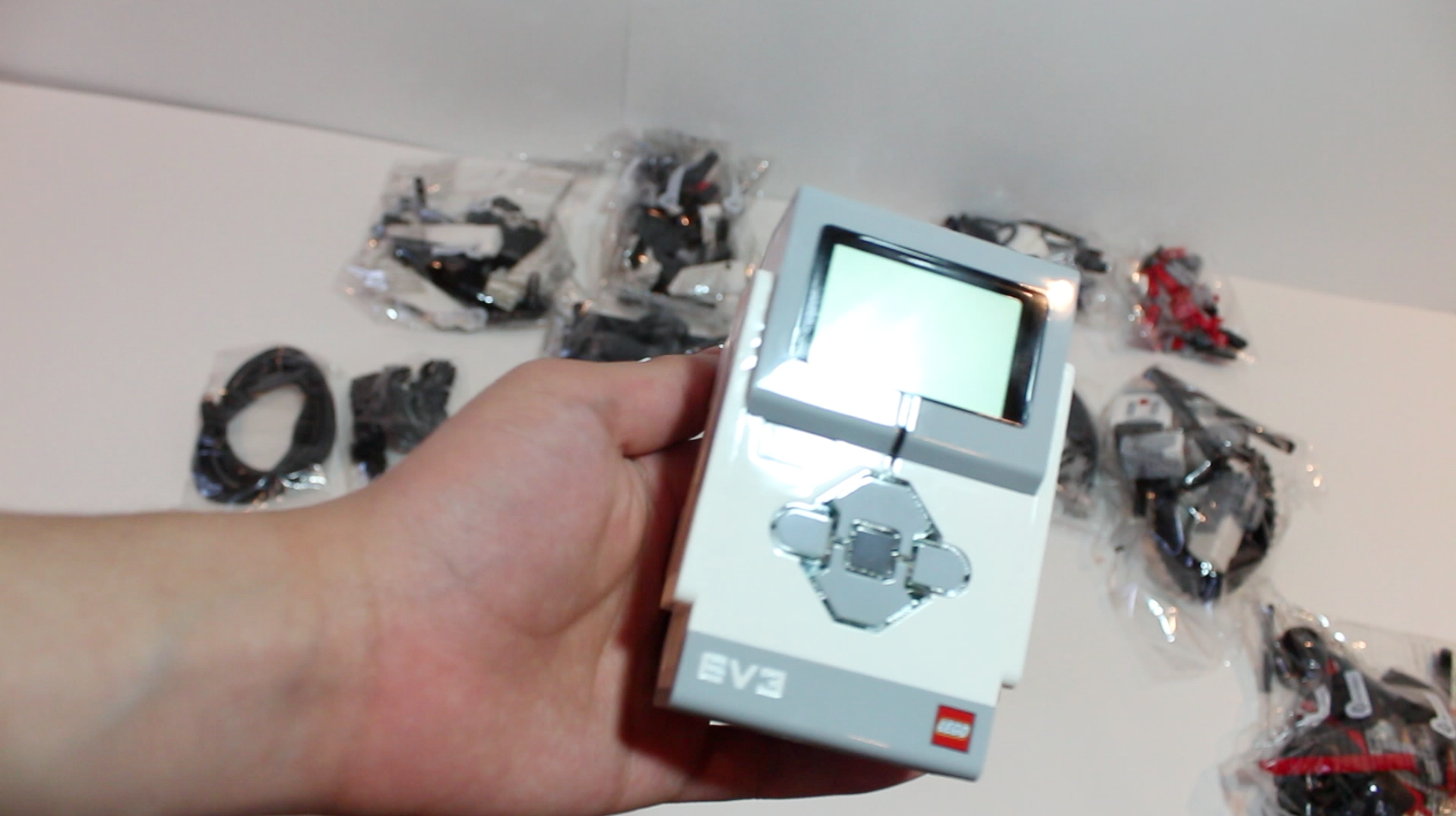
 Originally designed by Leon Overweel, OneMindstorm modified the Mindstorm Rig to provide iPhone compatibility. The rig uses two motors, therefore the rig can tilt and pan in different angles. The rig can be controlled using another Mindstorm. The remote control is quite simple and can easily control the rig without issues. This rig performs […]]]>

 The radical new Mindstorm EV3 was announced at CES this week, it will be available at stores during the second half of 2013. It will be priced at $350. Can’t wait. More information to come.]]>
 Originally designed by David Gilday, OneMindstorm built the MindCuber to test out and compare it with the other Lego Mindstorm Rubix Cube Solvers. The MindCuber is the best Rubix Cube Solver we have ever seen. When we first began to build this robot, we thought it wouldn’t work, such as the Tilted Twister by Hans Andersson it never worked […]]]>
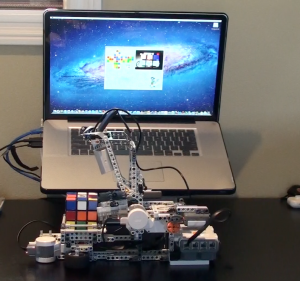 OneMindstorm demoed the “One-Armed Wonder” which was originally designed by Daniele Benedetelli. This robot uses a software on the computer to solve the rubix cube, it requires you have a USB Camera. You connect the NXT and the camera to your computer and the software takes care of the rest. This is not the case […]]]>
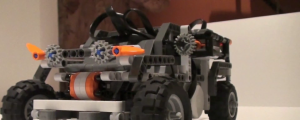 OM Car is a powerful Lego Car! It has a hidden light sensor, a touch sensor, and a sound sensor! It uses two back motors and one motor in front for steering! It is very durable and easy to build! Building instructions are available, the program is still in development but you can remote control the NXT […]]]>
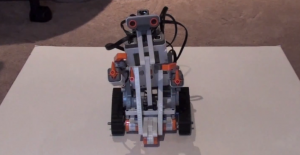 Morph Junior is a similar to the original Morph robot. Morph Junior is easier to build and requires less parts. Morph Junior has similar functions as the original Morph robot. The robot dances, talks, and response when different color balls are placed under the color sensor. Building instructions and program are available and you can […]]]>
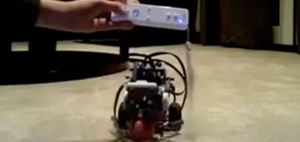 We all have fun with the Wii, since the remote can be used to play many types of games. But can it control the Mindstorm NXT or NXT 2.0? Yes, by using DarwiinRemote on Mac or Glove Pie on PC, you can easily remote control your Lego Mindstorm NXT or NXT 2.0 with your Wii remote. Select your operating system to […]]]>


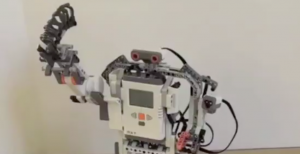 The Alpha Rex Shooter is a Mindstorm robot that shoots balls at a target. The Alpha Rex Shooter is a regular Alpha Rex Robot with a shooter arm attached on it. There are building instructions available. Program is going to be available soon. You can control the robot currently with the Mindstorm software. The robot […]]]>